Work items
A work item is the durable record for a note or something a project needs to complete, answer, approve, review, or decide. Use entries for updates and supporting detail.
Fields
| Field | Purpose |
|---|---|
| Title | Short description of the work. |
| Type | Kind of work or decision. |
| Status | Current state, based on the type. |
| Priority and due date | Optional urgency and target date. |
| Parent | Optional place in the project outline. |
| Assignees | Users or teams responsible for the item. |
Types and statuses
| Type | Starting status | Available statuses |
|---|---|---|
NOTE | OPEN | OPEN, IN_PROGRESS, BLOCKED, DONE, CANCELLED |
TASK, REVIEW | OPEN | OPEN, IN_PROGRESS, BLOCKED, DONE, CANCELLED |
QUESTION | OPEN | OPEN, WAITING, ANSWERED, CANCELLED |
APPROVAL | PENDING | PENDING, APPROVED, REJECTED, CANCELLED |
DECISION | OPEN | OPEN, IN_PROGRESS, DONE, CANCELLED |
BLOCKED means progress is stopped by another item. Record the cause with a
BLOCKED_BY relationship.
A NOTE appears as a title-only row in the workspace tree. Its regular fields
remain available in the inspector when needed.
Hierarchy and assignments
Children can be nested, moved, and reordered. Use a parent for structure and a relationship for dependency. An item can be assigned to users, teams, or both; team assignments also appear in the assignees' My Work views.
In the workspace, type badges distinguish tasks and decisions, while update counts, priority badges, and blocker labels make triage visible from the tree. Select an item to edit its fields in the inspector.
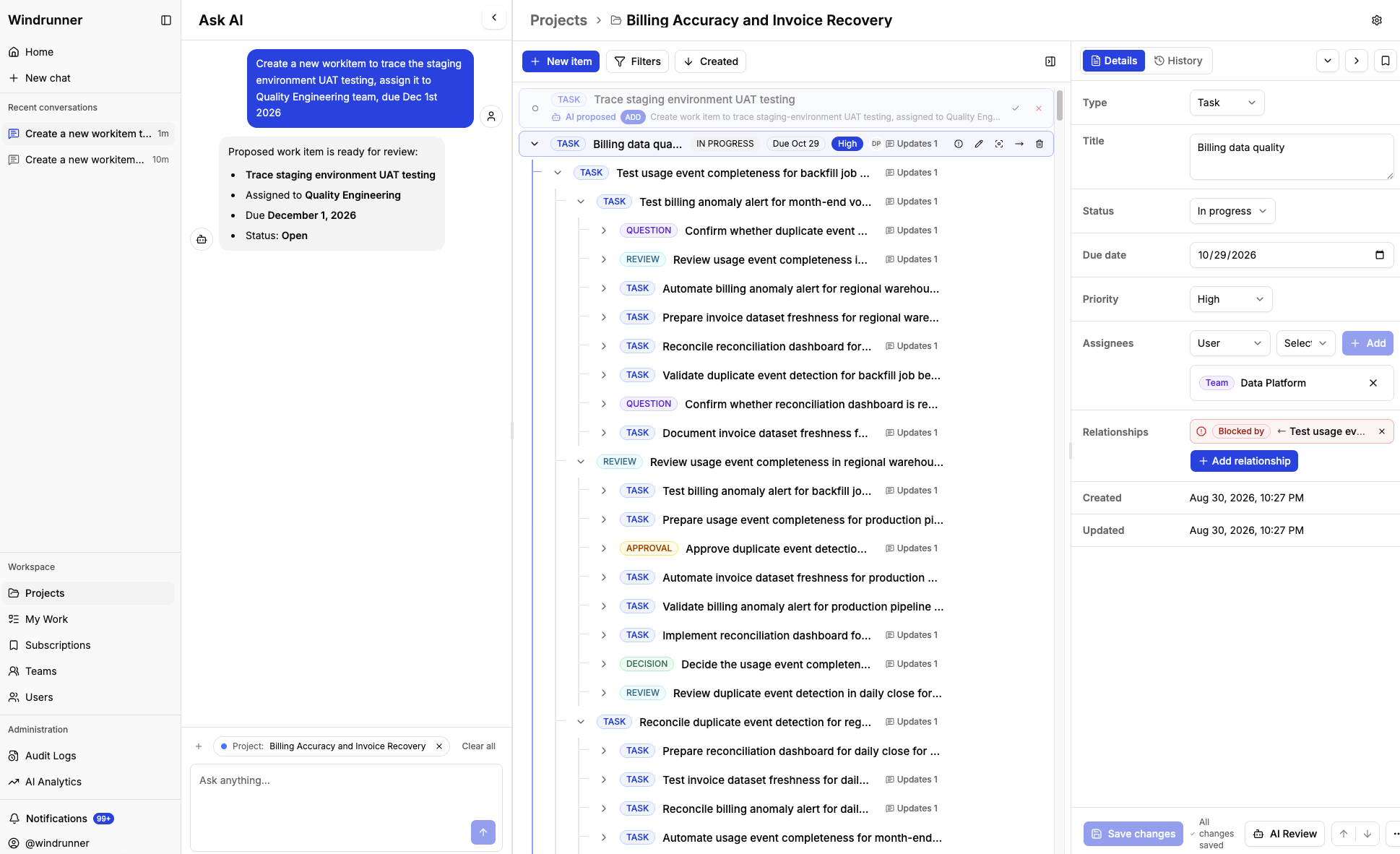
The inspector is the manual editing surface for a selected item. Update the title, type, status, due date, priority, or assignees, then save the changes without leaving the project tree.
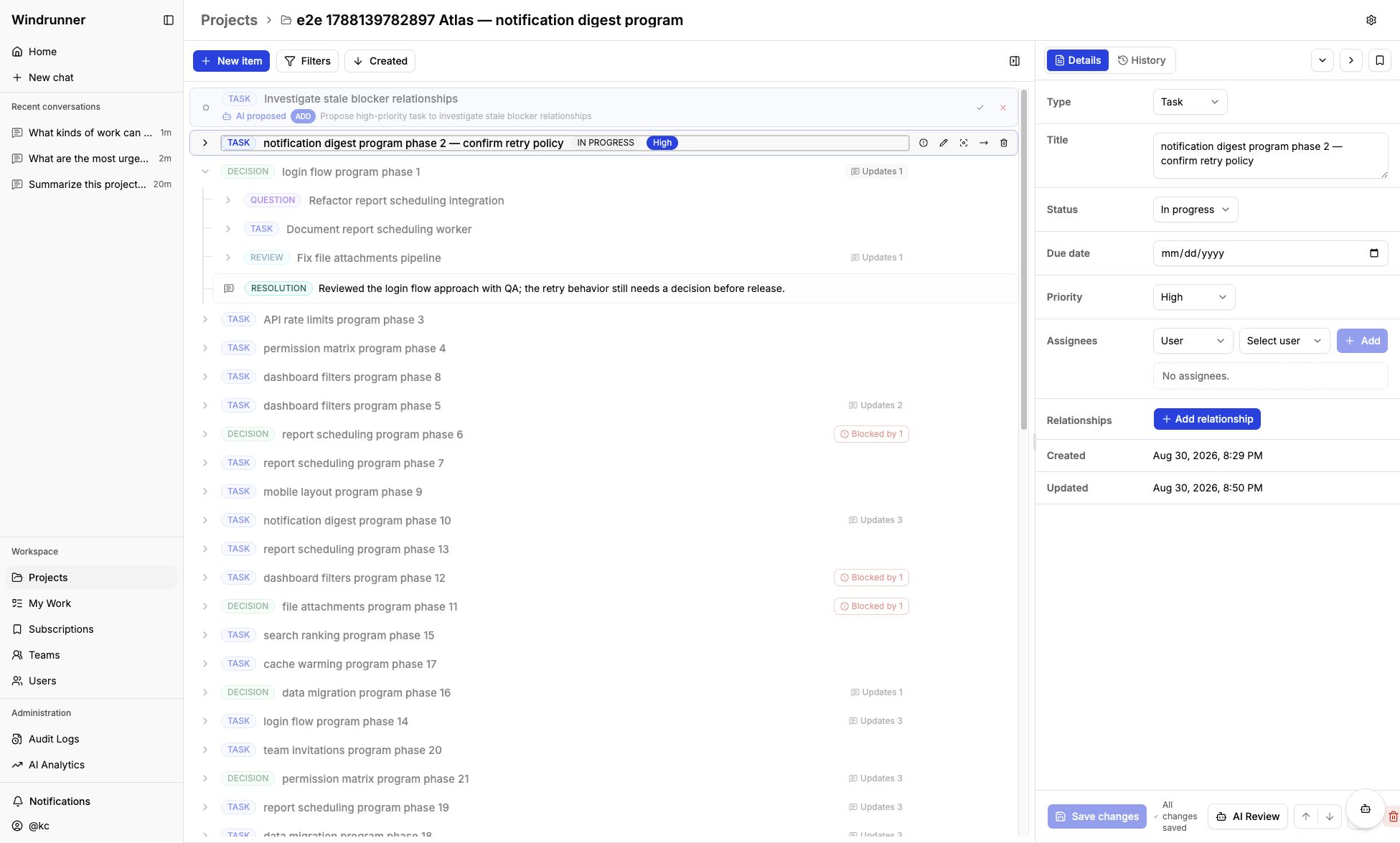
Editors can create and update work items. Ask AI can propose changes, but the proposal does not change the project until it is accepted.