Projects and the workspace
A project contains related work items, entries, relationships, and access through users and teams.
Project access
| Role | Access |
|---|---|
VIEWER | Read the project and its records. |
EDITOR | Create and edit work items, entries, and relationships. |
OWNER | Manage the project and its access, in addition to editor access. |
Access can be assigned directly to a user or through a linked team. A project must always have an owner. Super administrators have platform-wide access.
Workspace layout
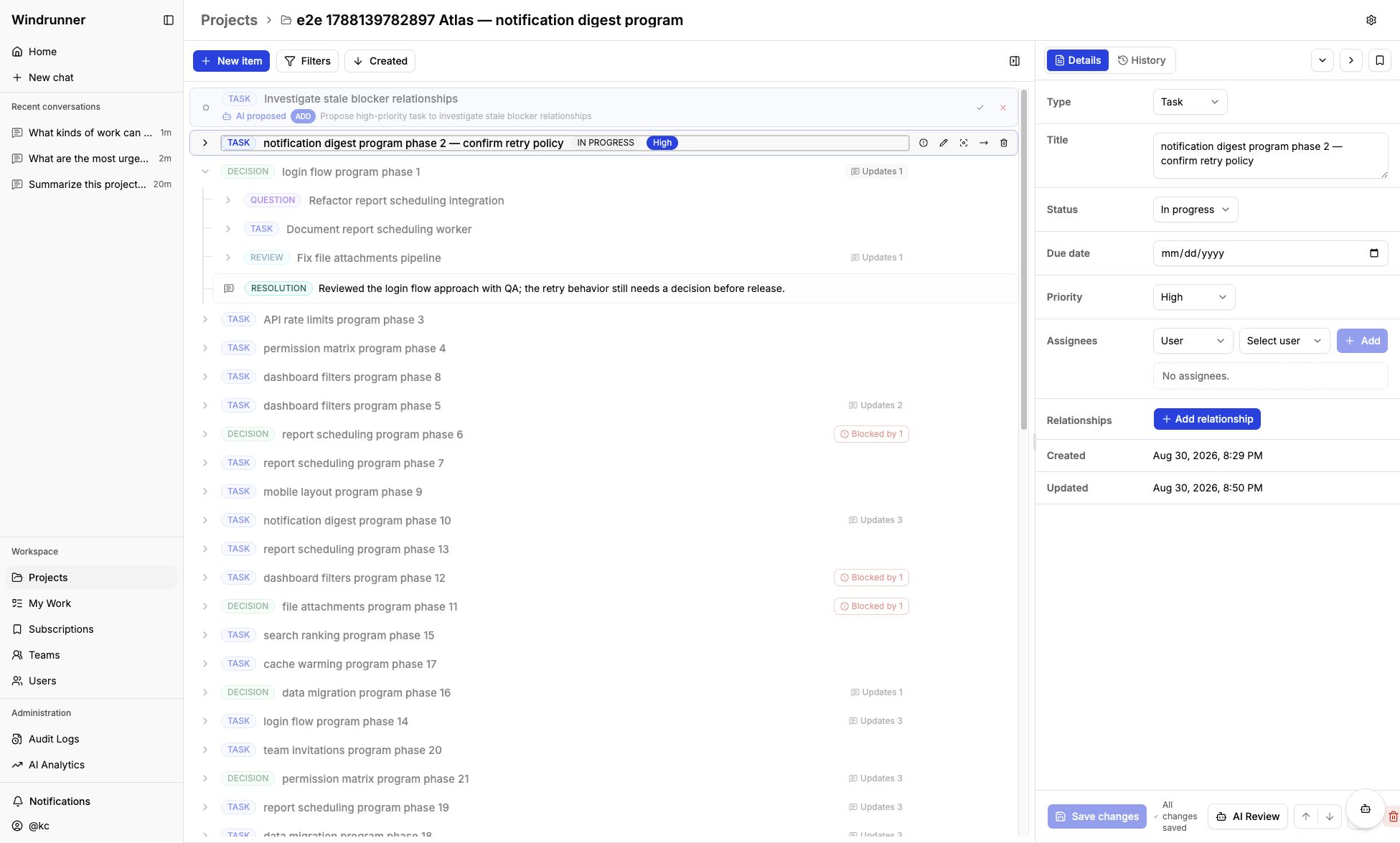
The workspace has three working areas: the navigation sidebar, a central work item tree, and an inspector for the selected item. The toolbar provides filtering, sorting, and New item. Selecting an item exposes its type, status, due date, priority, assignees, relationships, timestamps, and AI Review controls. The tree also surfaces update counts and blocker badges; expand a row to see nested work.
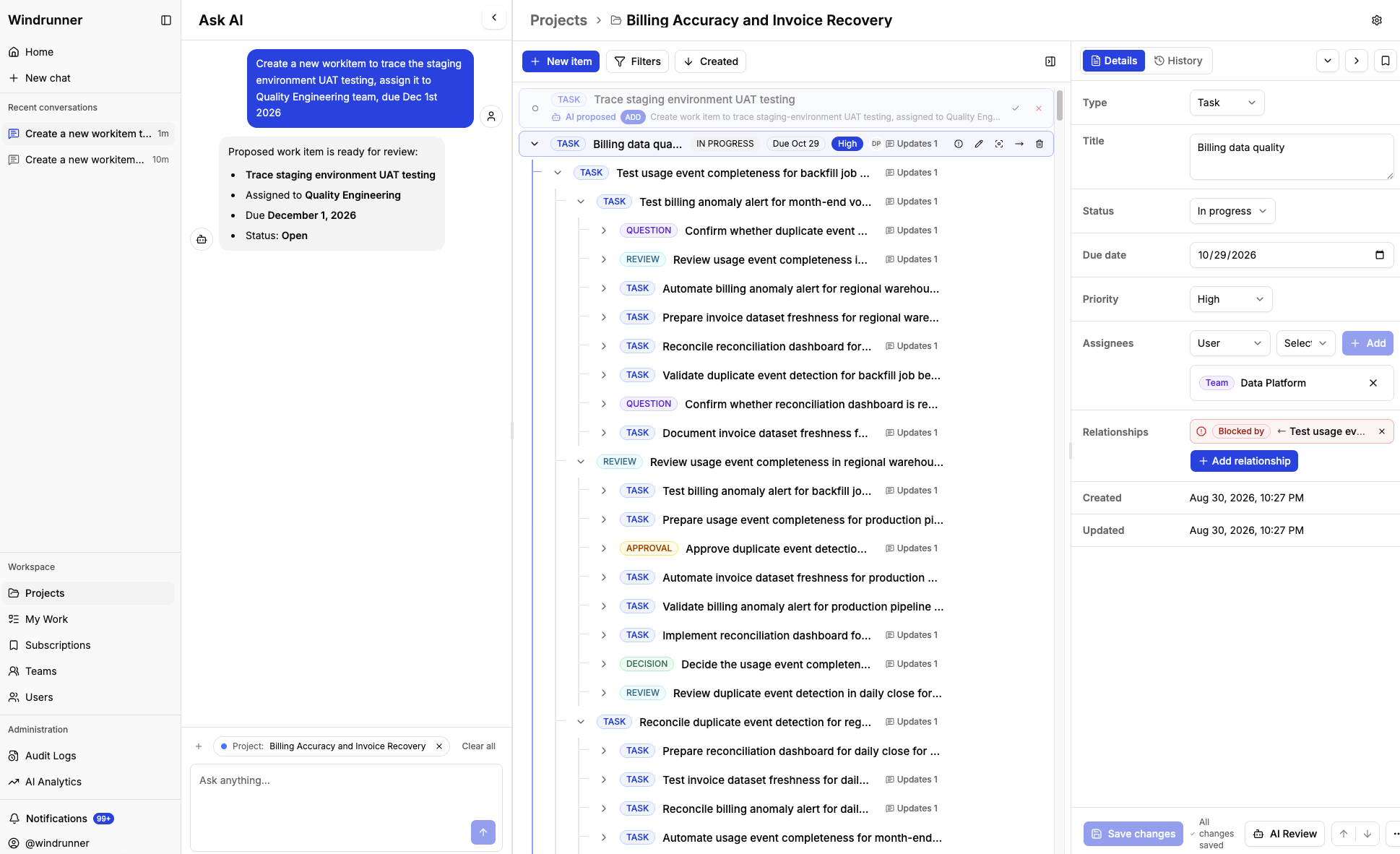
The inspector is also the direct editing surface. Select a work item to change its title, type, status, due date, priority, assignees, or relationships, then save the fields together.
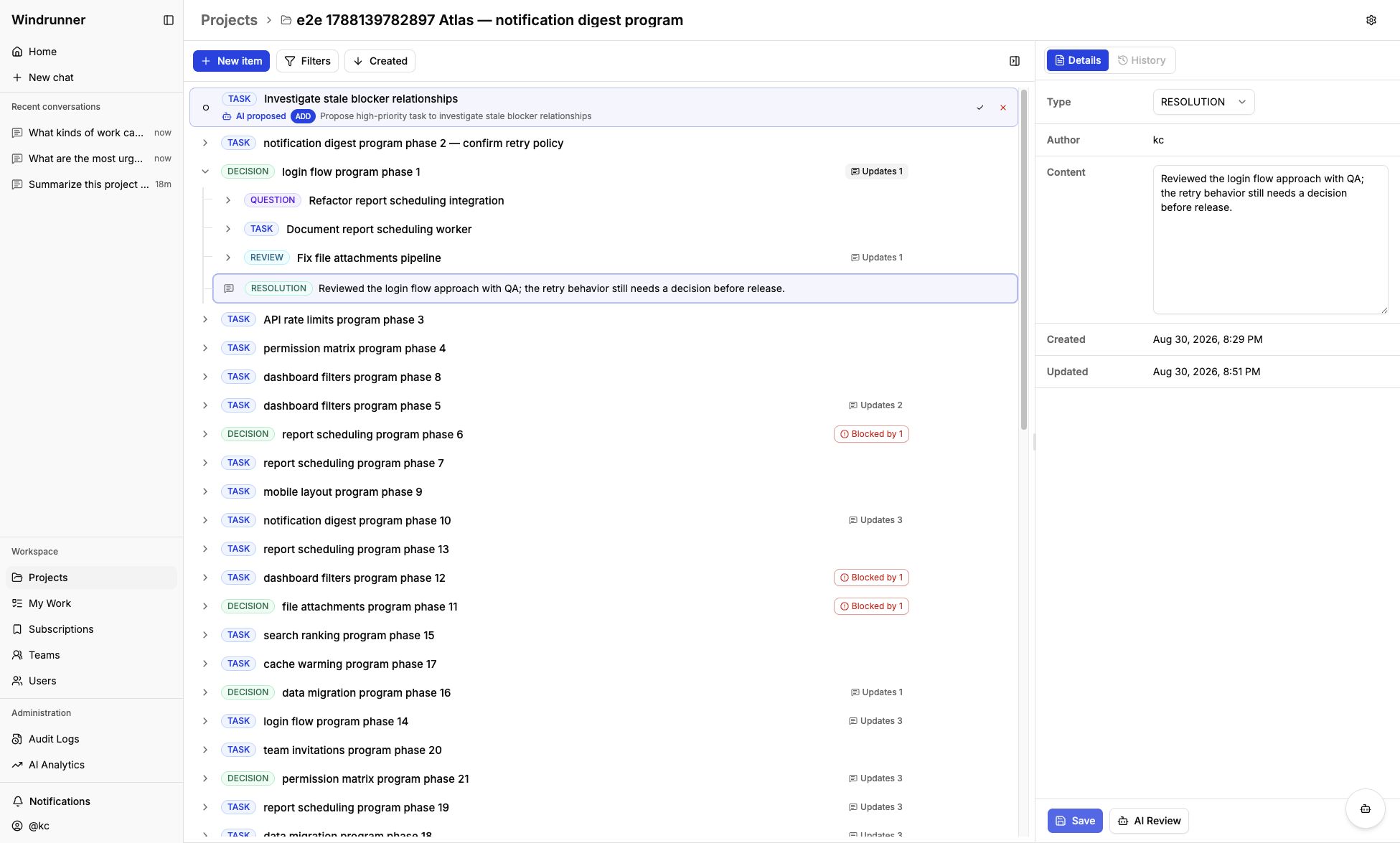
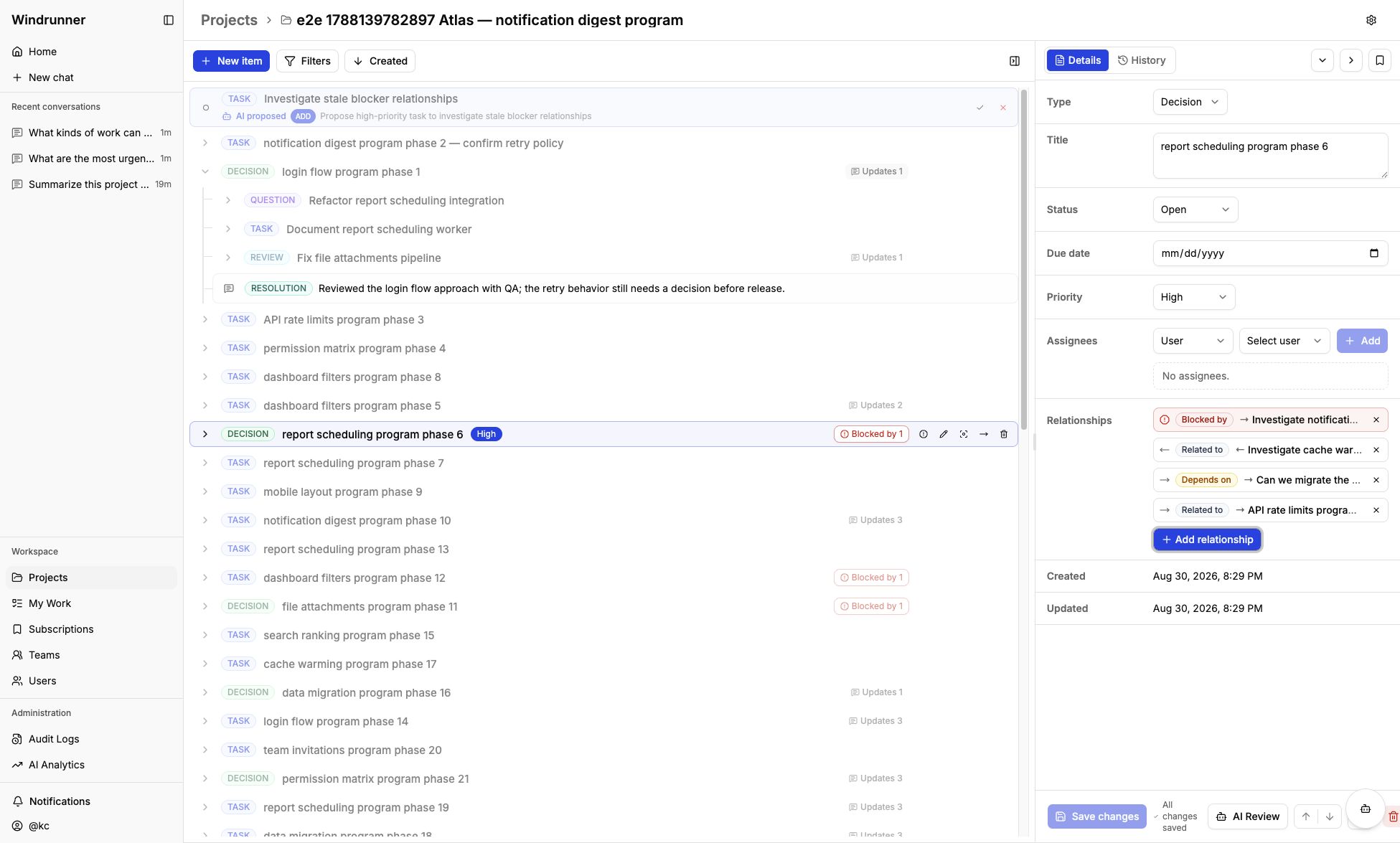
Expand an item’s updates and select an entry to edit its type or content in the same inspector. Relationship rows show direction, type, reason, and a remove control; Add relationship opens the typed relationship form.
Editors can add, edit, move, reorder, assign, and connect records. The History tab on the inspector shows changes for the selected work item.
When chat is open, the layout is always:
Navigation | Conversation | Project workspace
The panels resize and scroll independently. Closing chat does not clear its conversation or context, and opening a project does not create a conversation.
Ask AI can use the current project or selected item as context and can propose workspace changes for review.